
Fitness trackers have become a way to keep track of how much you move how you sleep and how you feel overall. Fitbit is one of the well-known names in the world of wearable fitness devices because of its easy-, to-use design and strong health-monitoring features.
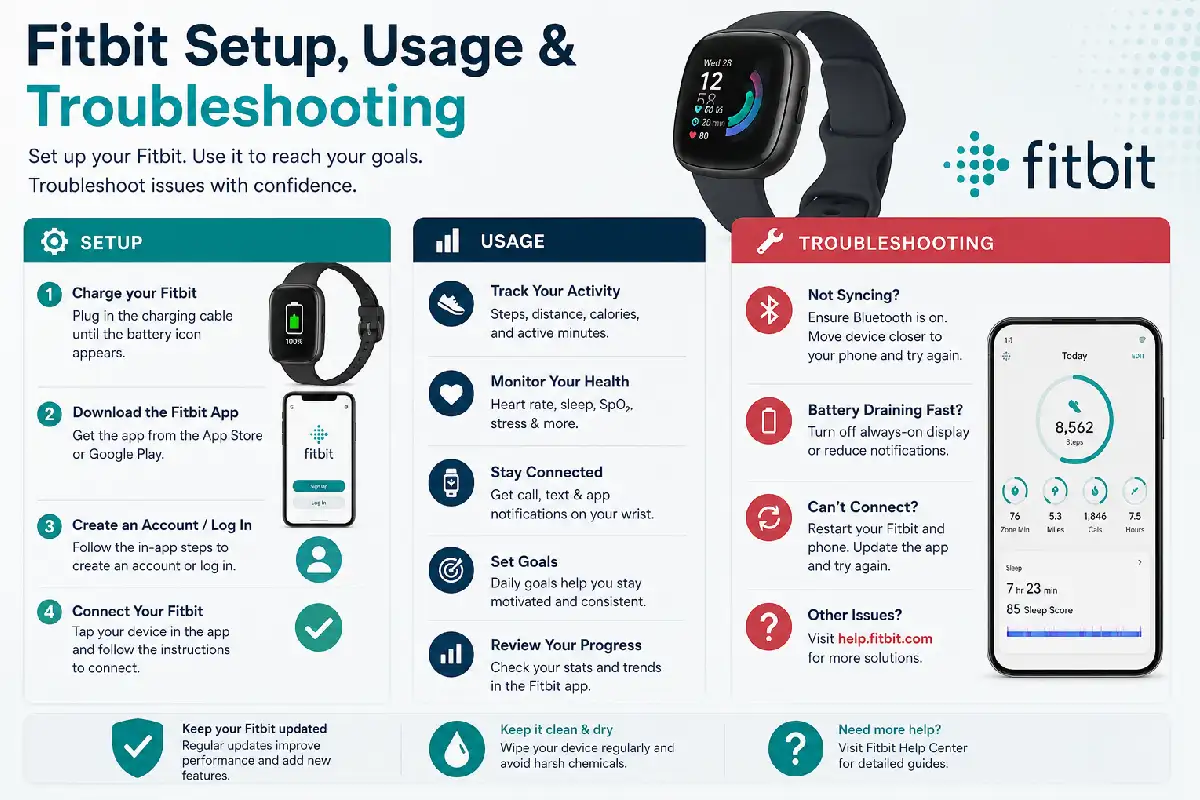
This Fitbit Setup, Usage & Troubleshooting guide shows you how to set up a Fitbit device link it to your phone learn how to use it every day and fix problems like when it doesn’t sync doesn’t charge or the app doesn’t work right. If you’re setting up your device or solving technical issues, it’s helpful to start with a complete overview in our Google Fitbit Air.
What Is Fitbit?
Fitbit is a wearable fitness and health tracking platform that combines a smartwatch or fitness tracker with a companion mobile application. It helps users monitor:
- Daily steps
- Distance travelled
- Heart rate
- Calories burned
- Sleep quality
- Exercise sessions
- Stress management metrics
- Blood oxygen trends (supported models)
The Fitbit ecosystem is made up of Fitbit hardware devices and the Fitbit mobile application. The Fitbit mobile application stores all of the health data that Fitbit collects and the Fitbit mobile application analyzes that data.
Fitbit Device Types and Features
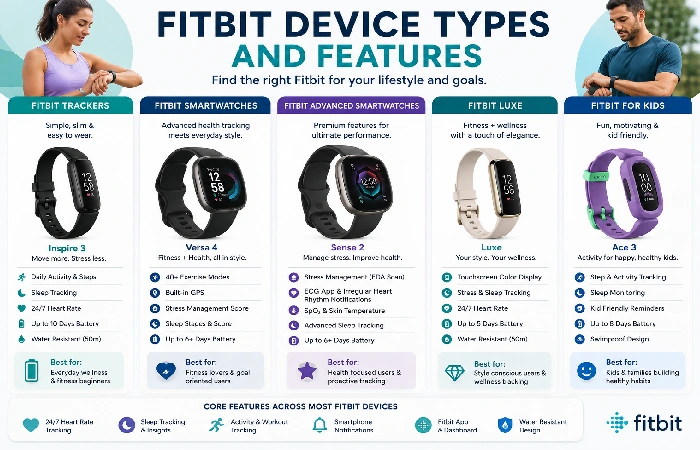
| Feature | Inspire Series | Charge Series | Versa Series | Sense Series |
| Step Tracking | Yes | Yes | Yes | Yes |
| Heart Rate Monitoring | Yes | Yes | Yes | Yes |
| GPS Support | Connected GPS | Built-in GPS (selected models) | Yes | Yes |
| Sleep Tracking | Yes | Yes | Yes | Yes |
| Smart Notifications | Yes | Yes | Yes | Yes |
| Stress Tracking | Limited | Moderate | Advanced | Advanced |
| ECG Support | No | Some Models | Some Models | Yes |
| Battery Life | Up to 10 Days | Up to 7 Days | Up to 6 Days | Up to 6 Days |
How to Set Up Fitbit
One of the most searched questions is how to set up Fitbit properly.
Step 1: Charge the Device
Charge your Fitbit devices to 100% with the charging cables before setting them up.
Step 2: Download the Fitbit App
Install the Fitbit application from:
- Apple App Store
- Google Play Store
Step 3: Create or Sign In to a Fitbit Account
Open the app and:
- Select “Join Fitbit”
- Create an account
- Verify your email address
- Complete profile information
Step 4: Pair the Device
- Turn on Bluetooth
- Open the Fitbit app
- Tap “Set Up a Device”
- Select your Fitbit model
- Enter the pairing code when prompted
Step 5: Configure Preferences
Set:
- Height
- Weight
- Age
- Activity goals
- Sleep goals
- Notification preferences
Accurate personal information improves tracking accuracy. Understanding the device’s features and specifications can help troubleshoot performance and connectivity issues. Learn more in our Google Fitbit Air Product Information Guide.
How to Connect Fitbit to Phone
Many new users ask how to connect Fitbit to phone successfully.
For Android Devices
- Enable Bluetooth
- Enable location services if required
- Open Fitbit app
- Choose device setup
- Follow pairing instructions
For iPhone Users
- Enable Bluetooth
- Open Fitbit app
- Sign in
- Select your Fitbit device
- Complete pairing
Connection Tips
- Keep the tracker within a few feet of the phone.
- Ensure Bluetooth remains active.
- Allow app permissions.
- Update device software when available.
Daily Fitbit Usage Guide
After setup, Fitbit can automatically track many health metrics.
Activity Tracking
Fitbit records:
- Steps
- Floors climbed
- Active minutes
- Distance travelled
- Calories burned
Exercise Tracking
Most Fitbit devices support:
- Walking
- Running
- Cycling
- Swimming
- Strength training
- HIIT workouts
Sleep Monitoring
Sleep tracking provides insights into:
- Sleep duration
- Sleep stages
- Sleep consistency
Heart Rate Monitoring
Continuous heart rate tracking can help users understand:
- Resting heart rate
- Exercise intensity
- Recovery patterns
Smart Notifications
Depending on the model, Fitbit can display:
- Calls
- Text messages
- Calendar alerts
- App notifications
Fitbit App Features Explained
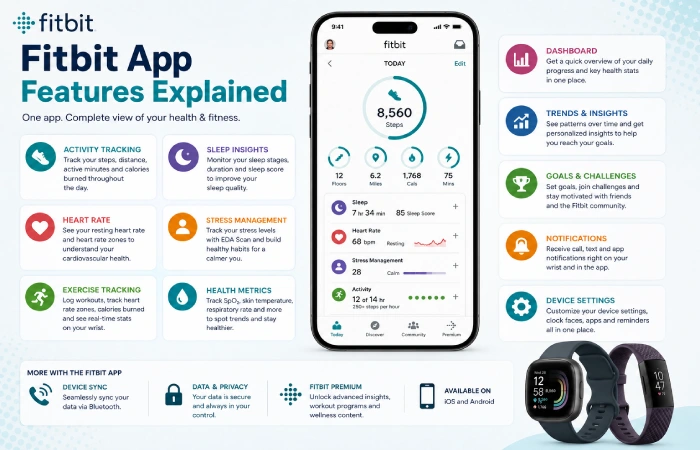
The Fitbit app acts as the central dashboard for all health data. Many workout-tracking issues can be resolved by understanding how exercise modes and fitness metrics work. Explore our Google Fitbit Air Workout Tracking.
Key App Features
- Health metrics dashboard
- Exercise history
- Sleep analysis
- Goal tracking
- Food logging
- Weight tracking
- Social challenges
- Wellness insights
Experience may be slightly different on Android vs iOS.
Fitbit Not Syncing: Causes and Fixes
One problem users experience a lot is Fitbit won’t sync.
Common Causes
- Bluetooth connection problems
- Outdated app version
- Low battery
- Background app restrictions
- Firmware issues
Troubleshooting Workflow
| Step | Action |
| 1 | Check Bluetooth connection |
| 2 | Ensure Fitbit is charged |
| 3 | Force-close the Fitbit app |
| 4 | Reopen and manually sync |
| 5 | Restart Fitbit device |
| 6 | Update app and firmware |
| 7 | Re-pair the device |
Manual Sync Process
- Open Fitbit app
- Select device icon
- Pull down to refresh
- Wait for sync completion
Sometimes you just have to get rid of and add the device back if it can’t sync at all. If your step count or daily activity data seems inaccurate, our Google Fitbit Air Activity Tracking explains how tracking features operate.
Fitbit Not Charging: Troubleshooting Guide
Another frequent concern is Fitbit not charging.
Possible Causes
- Dirty charging contacts
- Damaged charging cable
- Loose connection
- Software freeze
- Battery degradation
Quick Fixes
Clean the Charging Contacts
Use:
- Soft cloth
- Cotton swab
- Small amount of rubbing alcohol
Avoid excessive moisture.
Check Charger Alignment
Many Fitbit models require precise positioning on the charger.
Test Another USB Port
Faulty power sources can sometimes prevent charging.
Restart the Device
A frozen system may falsely appear uncharged.
When Battery Replacement May Be Needed
Older devices can experience battery wear after several years of use. Battery drain is no indication of a faulty device, simply old age. Sleep tracking, heart rate monitoring, and recovery insights may require proper setup for accurate results. Read our Google Fitbit Air Wellness Tracking.
Fitbit App Not Working: How to Fix It
If the Fitbit app not working problem occurs, several solutions are available.
Common Symptoms
- App crashes
- Login failures
- Missing data
- Sync errors
- Blank screens
Recommended Solutions
Restart the App
Close and reopen the application.
Update the App
Install the latest version from the app store.
Check Internet Connectivity
Some Fitbit features require:
- Wi-Fi
- Mobile data
- Fitbit server communication
Clear App Cache (Android)
- Open Settings
- Apps
- Fitbit
- Storage
- Clear Cache
Reinstall the App
If problems continue:
- Remove Fitbit app
- Restart phone
- Install app again
- Log back in
Performance Expectations and Limitations
Understanding realistic expectations helps avoid frustration.
What Fitbit Does Well
- Daily activity tracking
- Sleep monitoring
- Heart rate monitoring
- Goal motivation
- Long battery life
Limitations to Consider
- GPS accuracy may vary by environment.
- Heart rate readings may differ from medical-grade devices.
- Sync reliability depends on phone compatibility.
- Sleep estimates are not clinical diagnoses.
Fitbit Pros and Cons
| Pros | Cons |
| Easy setup | Occasional sync issues |
| Good battery life | Some advanced features require subscription |
| Strong mobile app | GPS may vary by location |
| Comfortable design | App updates can occasionally introduce bugs |
| Broad device selection | Not a replacement for medical equipment |
Who Should Use Fitbit?
Fitbit may be suitable for:
- Beginners starting fitness journeys
- Weight management users
- Walking enthusiasts
- Sleep improvement tracking
- General wellness monitoring
Who May Want Alternatives?
Some users may prefer alternatives if they need:
- Advanced athletic metrics
- Deep running analytics
- Extensive outdoor navigation
- Professional sports training features
Fitbit Alternatives
| Brand | Best For |
| Garmin | Endurance athletes |
| Apple Watch | iPhone users wanting smartwatch features |
| Samsung Galaxy Watch | Android integration |
| Polar | Training analytics |
| Amazfit | Budget-conscious buyers |
Buying Tips Before Choosing a Fitbit
Consider:
- Your fitness goals
- Desired battery life
- GPS requirements
- Smartwatch features
- Budget
- Subscription preferences
Is Fitbit Legitimate and Trustworthy?
Fitbit is one of the top fitness technology companies available and most consumers are familiar with Fitbit globally. Its devices generally provide reliable wellness and activity insights for everyday users. Before troubleshooting specific issues, it can be useful to see how other users rate the device in our Google Fitbit Air Reviews Guide.
Conclusion
This Fitbit Setup, Usage & Troubleshooting guide shows you how to do everything. I will help you with pairing your device and using it every day. II will also assist with issues such as Fitbit syncing, not charging, or not responding. Fitbit devices provide you with data on your fitness and wellness patterns. However you should remember that Fitbit devices might not be perfect, with every measurement. If you set up your Fitbit correctly keep the software updated and know how to fix issues you will have a great time using your Fitbit.